
Import your volunteers, and get your data back out
Almost nobody starts from a blank page. You already have a file: last year's hundred and twenty volunteers, the club's membership list, the table the treasurer has kept for six years. So the first question is not "how do I register them?", it is "what happens to what I already have?"
Your spreadsheet comes in as it is
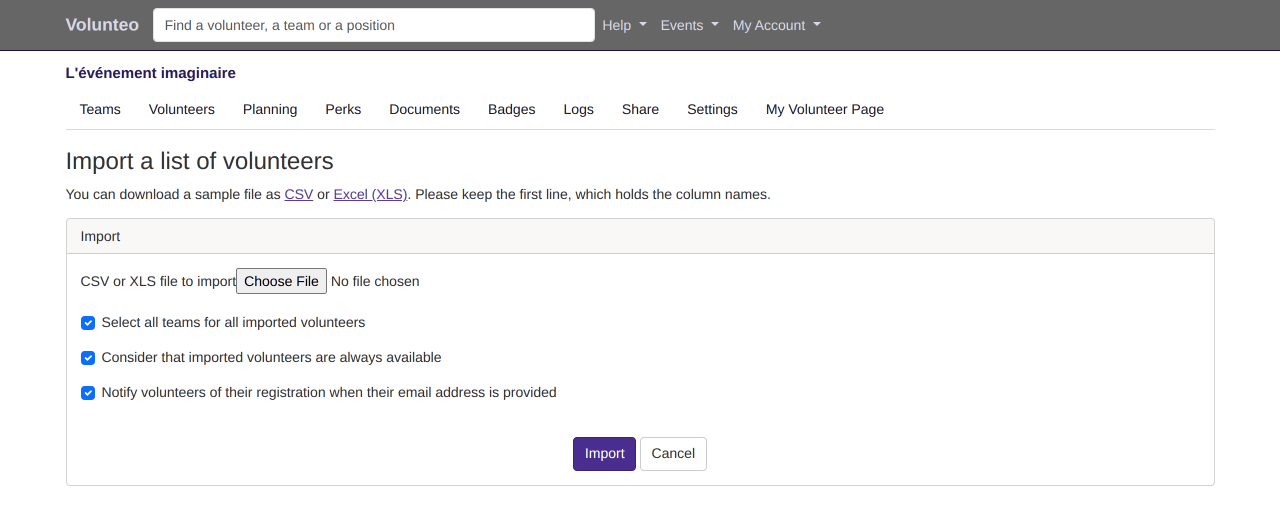
The import accepts a CSV, XLS or XLSX file. So you never have to guess which columns are expected, the import screen offers a template to download, as CSV or Excel: last name, first name, date of birth, sex, full address, country, email, landline, mobile. That template is not generic, it is your event's: if you ask for T-shirt sizes, the column is there; if you ask three extra questions at registration, they are there too, under their own headings.
You fill it in, you upload it, done. Day, month and year dates are understood, and so are Excel's own dates, which saves you proofreading a file three people have edited.
Three questions at import time
An import does not just create records, it has to decide what those volunteers are meant to do. Three checkboxes, ticked by default, answer the three most common cases:
- Mark them interested in every team, rather than leaving them with no preference and having to come back to it.
- Treat them as available for the whole event, which is almost always true of a list carried over from last year, and lets you start assigning straight away.
- Notify them by email, where the file holds an address: they get their access and can correct whatever you typed on their behalf.
You can also import straight into a team, or into a volunteer group: the fifteen people the rugby club sends you arrive attached to the club, with no sorting afterwards.
And if you run the import again after fixing a row, volunteers already present are not recreated: the screen tells you how many it added and how many were already there.
Your data comes back out whenever you want
A tool you cannot get anything out of is a tool that holds you hostage. Everything you see on screen exports, as Excel or CSV:
- the volunteer list, with the columns you chose and the answers to your questions;
- a team, every team, or a position with its assignments;
- the schedule, as a PDF table, as a picture of the timeline, as Excel, and as a staffing report position by position;
- one volunteer's schedule, the one you print or send to someone who never opens their email;
- the perks granted and used, for the caterer's invoice;
- volunteers' photos, when you ask for them, in a single archive.
The CSV is written for a spreadsheet to open without a detour: semicolon separated, UTF-8 with its byte order mark. It opens on a double click, the accents are intact, and the rows are not piled into column A.
And on the volunteer's side
They do not need a spreadsheet to know when they start. From
their own page, they add
their shifts to their phone's calendar in one click, through an .ics file every calendar application
can read. Times are written in the event's time zone, the one every page shows.
Why it matters
A failed import costs an evening and sends an organiser back to their spreadsheet. An impossible export does the same thing a year later, exactly when the town hall or the sponsor asks for figures. Getting in and getting out are the two moments a tool is judged on, and they are the two moments most tools leave you to your own devices.
Frequently asked questions
Which file formats are accepted?
CSV, XLS and XLSX. The column template downloads from the import screen, as CSV or Excel, already filled in with the questions you ask at registration.
What happens if a volunteer is already registered?
They are not created twice. The import counts volunteers who were already there separately and tells you how many it found, so you can re-import a corrected file without creating duplicates.
Does the export keep the answers to my questions?
Yes. The questions you asked at registration are columns of the export, just like the name or the phone number.
Does the CSV open properly in Excel?
Yes. It is semicolon separated and written in UTF-8 with its byte order mark, so accented characters survive and rows do not all end up in the first column.
Read next
Volunteer tracking
Filter by status, team, availability or assigned position, choose your columns, and find each volunteer's full history.
Teams and positions
Split the event into teams and positions, hand each team to its lead, and say how many volunteers you need, hour by hour.
All features
- Volunteer registration
- Volunteer import and export
- Volunteer tracking
- Teams and positions
- Volunteer scheduling
- Shift booking
- The volunteer's account
- Emails to volunteers
- Documents and mail merge
- Badges and perks
- Attendance check-in
- Volunteer groups
- A new edition every year
- Volunteer data and GDPR
- Accessibility for volunteers