
Keeping track of three hundred volunteers
Once registration opens, the whole organisation plays out on a single page: the volunteer list. Who just arrived, who is waiting on an answer, who has filled in nothing yet, who is free on Sunday morning, who is assigned nowhere. A list that only knows alphabetical order forces you to keep a second table beside it, and it is that second table that ends up being the real one.
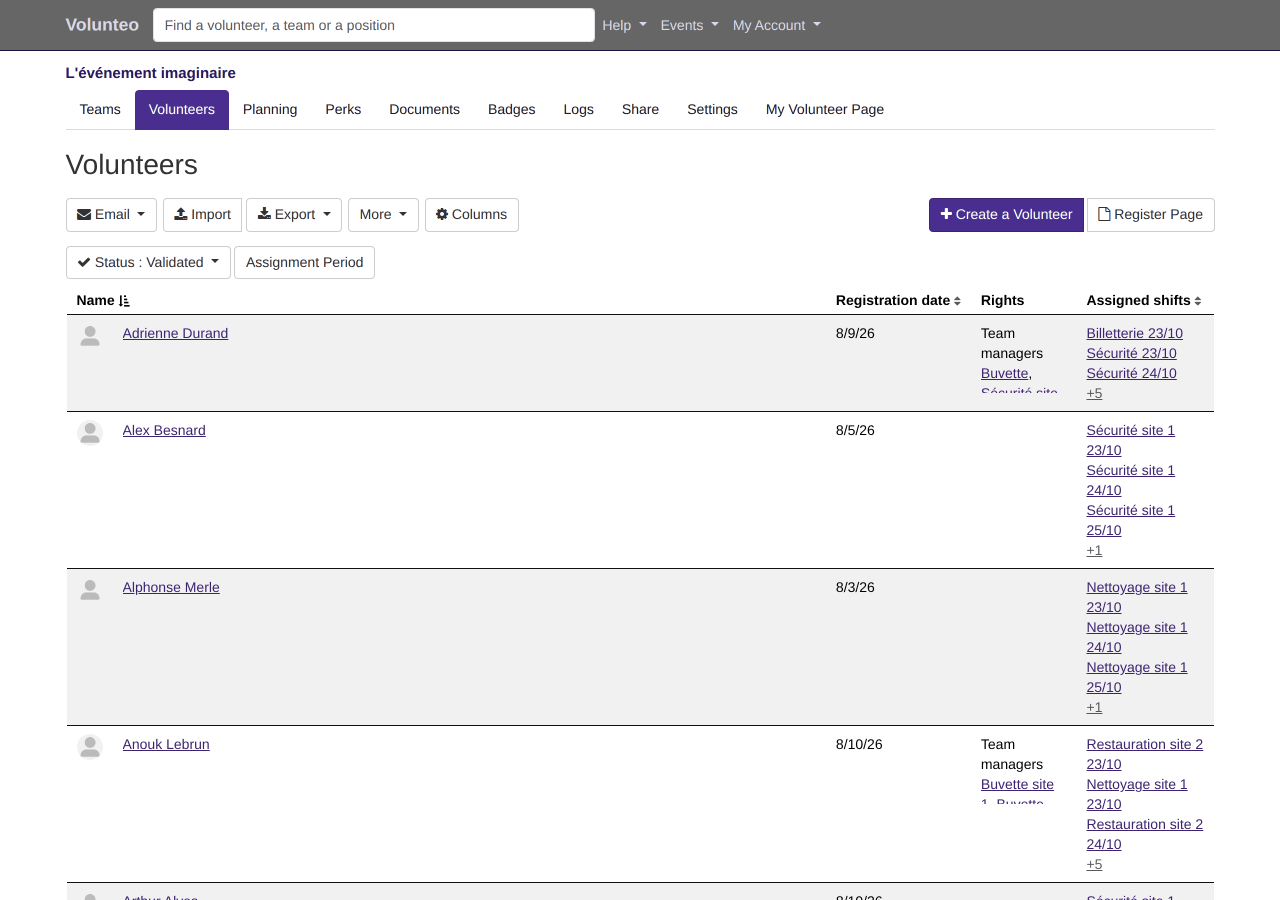
Five states, and a filter for each
A volunteer is not simply registered or not. The list tells apart those you have accepted, those awaiting your decision, those you have turned down, those you invited from the previous edition who have not answered yet, and those who have said they are away this year.
That distinction is what answers the only question that matters a week before: how many certain people, and how many maybes. Each filter carries its own count, so you never have to count.
Filtering on what you are actually looking for
Beyond status, the list narrows down on what helps you decide:
- the volunteers of a given team, or those who asked for it without being assigned to it yet;
- those assigned to a specific position;
- those available over a period, the one shift you cannot fill;
- those whose total assigned hours stay under a threshold, or go over it: the forgotten and the overloaded turn up in the same move.
Searching by name is still there, of course, for the volunteer who calls and whose first name is all you caught.
Your columns, not ours
Every event tracks something different. So you choose which columns are shown: availability, requested teams and their comment, assigned positions, total assigned time, registration date, date of birth, rights, group, internal rating. And your own questions: if you ask about driving licences, T-shirt sizes or dietary requirements at registration, those are columns like any other, sortable like any other.
Sorting follows the column, both ways, and it survives pagination and filters alike: you do not lose your view by turning the page.
What the list lets you do, from the list
Accept or turn down a registration, assign someone to a position, open their record, write to the current selection (the filter becomes the recipient list, see emails to volunteers), and export what you are looking at, columns included. And for the volunteer who lost their password the night before, a sign-in link to send them, or to read out over the phone.
Every volunteer has a history
On their record, a log retraces what happened to them: their registration, your validation, their assignments and the changes to them, the emails they received. You can add your own dated notes, Tuesday's phone call, the promise to drop by on Saturday. Three people running the same event stop relaying things to each other by text message.
Alongside it sits an internal rating, one to five stars, invisible to the volunteer. It is nearly useless during the event, and very useful a year later, when you decide who to call back first.
The event has a log of its own, gathering everything that happened on it, and it can be filtered: by volunteer name, by kind of action (additions, changes, deletions, volunteers' own answers, check-in, messages sent) and by period. That is what answers "who took this volunteer off the position, and when", rather than scrolling through thousands of rows.
Why it matters
The spreadsheet kept on the side is the sign that a volunteer management tool has failed. It always appears at the same point: the day the list cannot answer "who is free on Sunday morning and not assigned yet". As long as it can answer that, there is only one list, and it is the right one.
Frequently asked questions
How many volunteers can the list handle?
Events with several hundred volunteers are the ordinary case. The list is paginated by default; you can unroll it in one piece when you would rather see everything, or load it as you scroll.
Does a team manager see the whole list?
They see the volunteers in their scope. What they may do next, validate a registration, create a volunteer, edit availability, is set event by event in the settings.
Can a volunteer be rated?
Yes, from one to five stars, half stars included, and the rating stays internal to the organisation. It mostly earns its keep the following year, when you decide who to call back first.
How do I find out what happened to a volunteer?
Every volunteer has a log: registration, validation, assignments, emails received, changes. You can add your own dated notes to it, the content of a phone call for instance.
Read next
Teams and positions
Split the event into teams and positions, hand each team to its lead, and say how many volunteers you need, hour by hour.
Volunteer scheduling
Assign people without ever creating a clash, follow staffing position by position, and send everyone their own schedule.
All features
- Volunteer registration
- Volunteer import and export
- Volunteer tracking
- Teams and positions
- Volunteer scheduling
- Shift booking
- The volunteer's account
- Emails to volunteers
- Documents and mail merge
- Badges and perks
- Attendance check-in
- Volunteer groups
- A new edition every year
- Volunteer data and GDPR
- Accessibility for volunteers